> For the complete documentation index, see [llms.txt](https://guide.taskopad.com/llms.txt). Markdown versions of documentation pages are available by appending `.md` to page URLs; this page is available as [Markdown](https://guide.taskopad.com/fundamentals/time-sheet/actual-hours-entry-in-timesheet.md).
# Actual Hours Entry in Timesheet
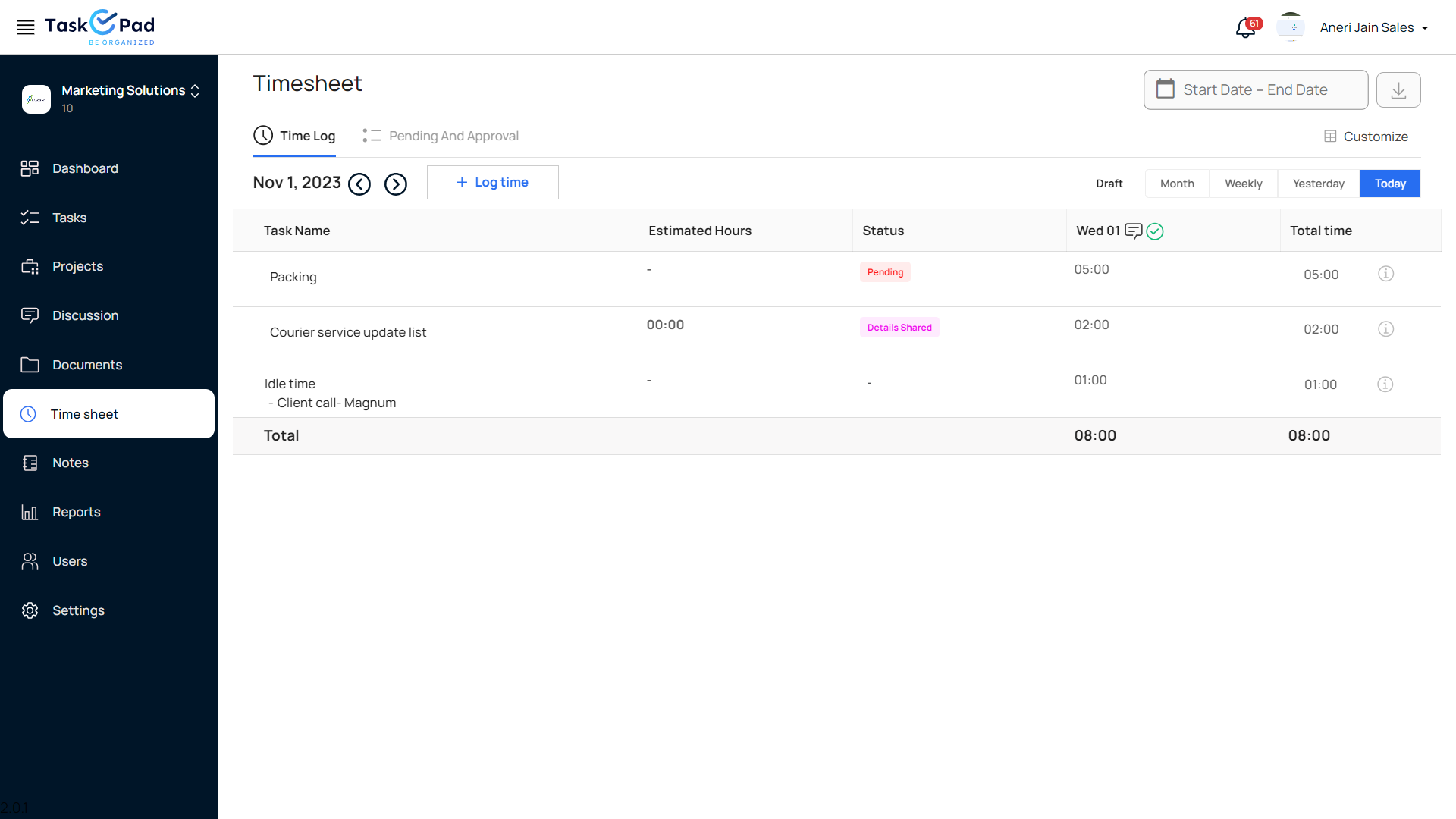
hoursIn addition to entering data from Task, you may also add entries from Timesheet. The entries made from the task will be synchronized so that whatever entries are made in the task will display straight in the timesheet.
***There are two tabs here:*** Time Entry and Pending & Approval.
**Time Entry in Timesheet**: Here we have the option of ***" + TIME LOG"*** from which you can select the task name of which you want to do the time entry, You can select the date, start time-end time, and a note regarding this particular task.\`
Your recorded time will automatically link to the tasks and count toward the total hours worked for the day. You can choose to enter the time you started and finished or simply note the actual hours you spent on the task.
***Here, you can also do the time entry for Idle or Other work.***
***1) Idle Entry:*** Here if you don't have any task to do and you are sitting idle then you might specify the times so that your superior is aware that you had no task during that time period. You can add notes as well.
***2) Other Work Entry:*** Rather than your task you have some other work to do in a day you can mention that in the timesheet as well.
**For instance:** You had a meeting in between your tasks, and you want to notify your immediate superior about the time taken in that meeting. In that case, you can add that time entry in Others.
To add the time entry, click on ***" + TIME LOG"*** and then click on Others. You can add the start time and end time and can write a note about this meeting.
***Delete Entry***: And this is how all the entries will be presented on the Timesheet Dashboard, if you have made an entry by mistake, we also have the opportunity to Delete to make the corrections before submitting the Timesheet to your superior.